
How to use HomePod and HomePod Mini with Mac
While HomePod is mostly reliable after setting up, most users struggle with its initial set-up. Especially when it comes to connecting HomePod to the Mac. If your HomePod is giving you a hard time, check out this guide to connect HomePod and HomePod Mini to Mac seamlessly.
Requirements to connect HomePod to Mac:
- You can’t set up HomePod using Mac. So, set up HomePod using the iPhone, iPad, or iPod touch beforehand.
- Either of the below should be true:
- HomePod and Mac should be on the same Wi-Fi
- HomePod and Mac should share the same Apple ID
If you’re confused about the above statement, let me elaborate. Mac uses AirPlay to stream content on HomePod. Thus they are not bound to be on the same Apple ID or Wi-Fi, although at least one of these situations should be fulfilled.
If the Mac and HomePod share the same Apple ID, HomePod will automatically pop into Mac’s Home app and set itself up. And whenever HomePod is in range, music or other content from your Mac will auto-play on the smart speaker.
How to AirPlay audio from your Mac to HomePod and HomePod Mini
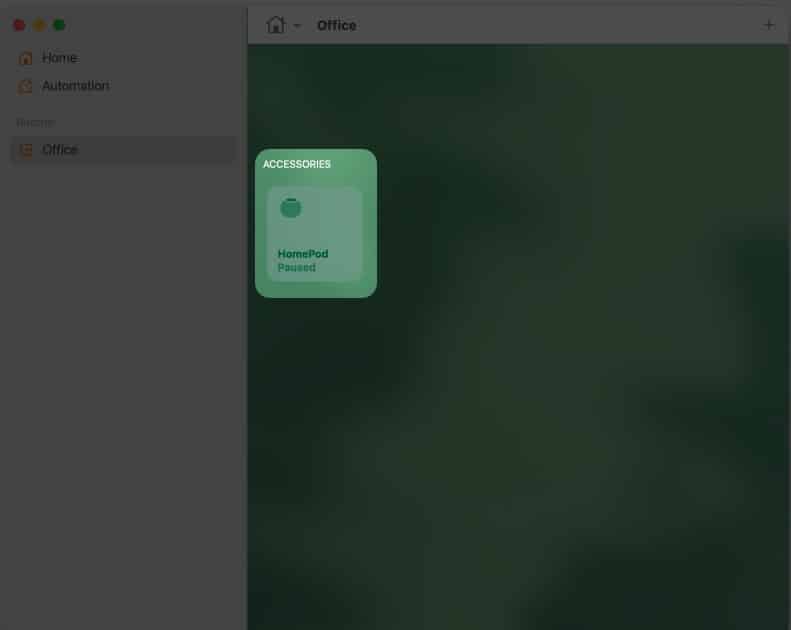
- Open Home App on your Mac.
- Ensure that HomePod is visible here and proceed to the next step.
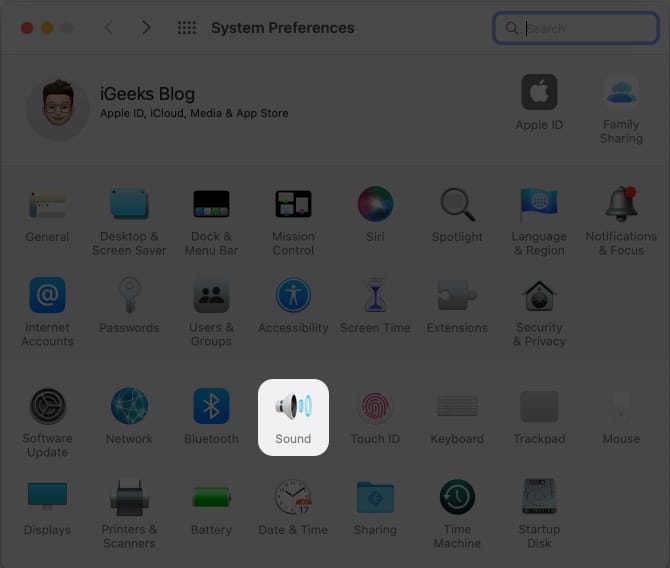
- Now open the System Preferences or System Settings (macOS Ventura and above).
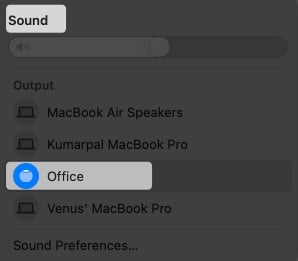
- Click Sound → Output.
- Select HomePod from the options to start playing content on HomePod.
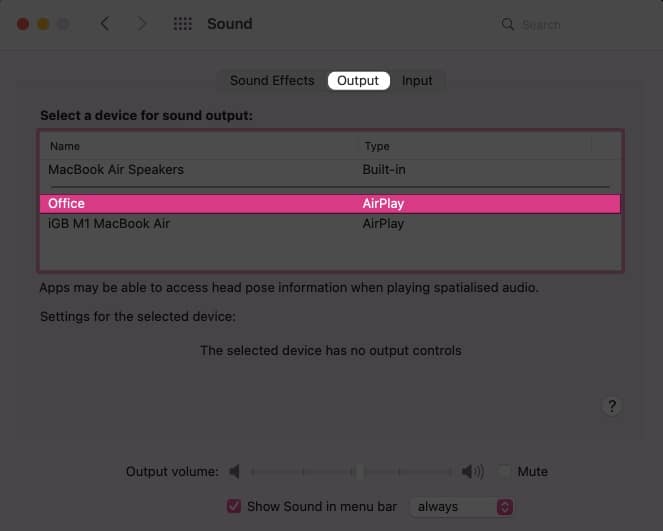
The method will be almost the same if your Mac and HomePod share the same Wi-Fi. It will not be visible in the Home app, so follow steps 3 to 5.
Alternatively, you can visit the Control Center of your Mac, click the Sound section → select HomePod from the options.
HomePod not connecting to Mac
If your HomePod is not visible in the Home app or Sound Preferences, then check the following:
- HomePod and Mac are on the same Wi-Fi or Apple ID.
- You have selected the correct device in your Sound Preferences.
- HomePod’s Volume, try increasing or adjusting it.
- HomePod’s Firmware is up to date.
All of the above conditions are met, but you’re still facing the problem? The issue might be in the HomePod; check out our useful guide about quick ways to fix any HomePod-related issue.
Conclusion
I would like to admit that HomePod is a really great contender in the smart home space. Compared to any other device, it has better sound quality and connectivity. The only hiccup understands how the Apple Ecosystem works and how to make the most of it. What are your thoughts on it? Do let me know in the comments.
Frequently Asked Questions
Topics

Written by
KevalMy profile will tell you I am a content writer, and my Zodiac will tell you I am Tauras. But the truth is I am a Techofile who dived down the bed of tech sea discovering useful How-Tos and some gorgeous wallpapers. While you are here reading this, I am probably tweeting about tech. Go check that as well.
View all posts →More from Mac
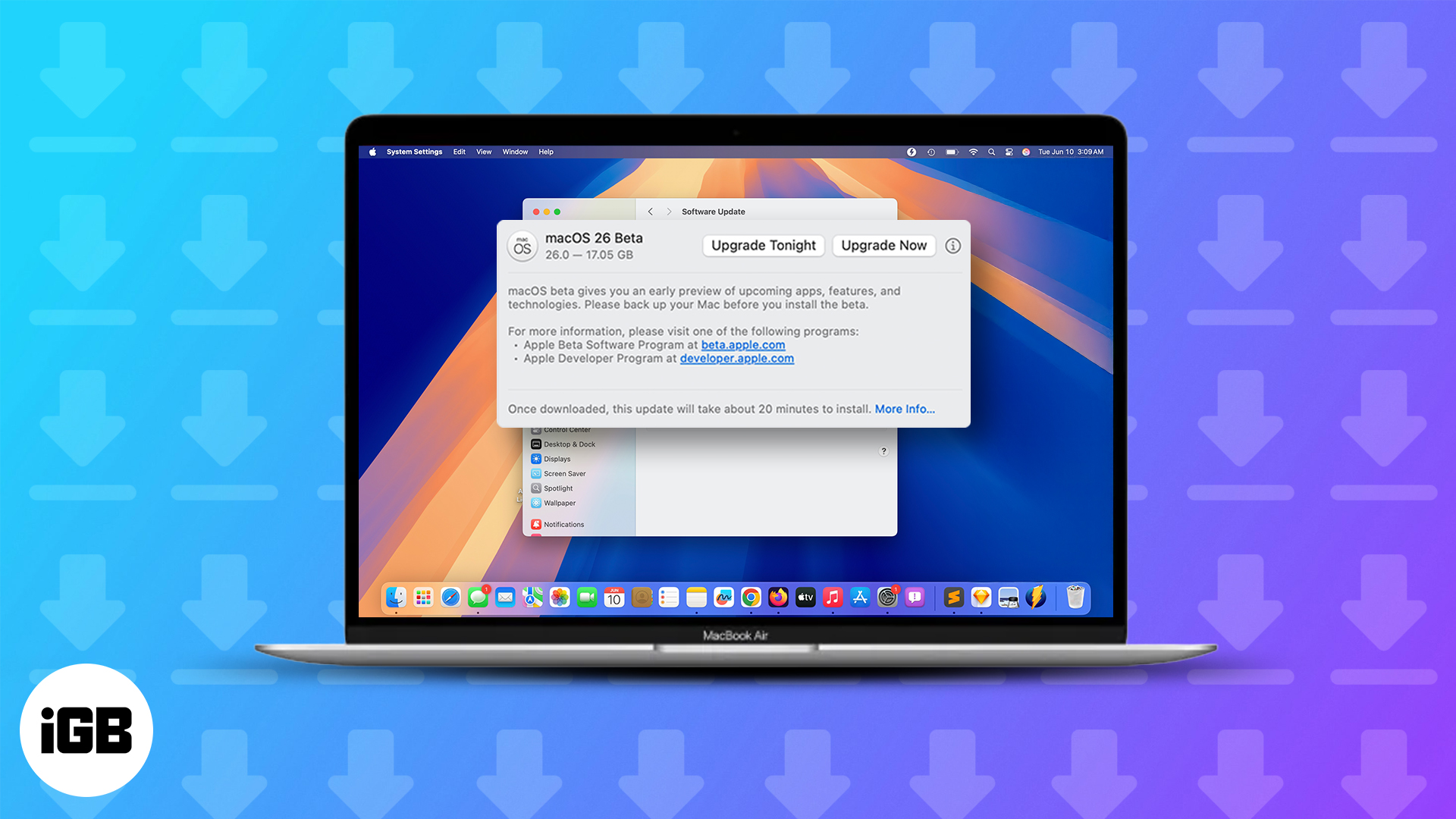
macOS Tahoe 26.4 Developer Beta 2 Is Here: How to Install It Right Now
Ready to test macOS 26 Tahoe? Here’s how to install the developer beta on your Mac, including key tips to stay safe during the upgrade.
 VikhyatFebruary 24, 2026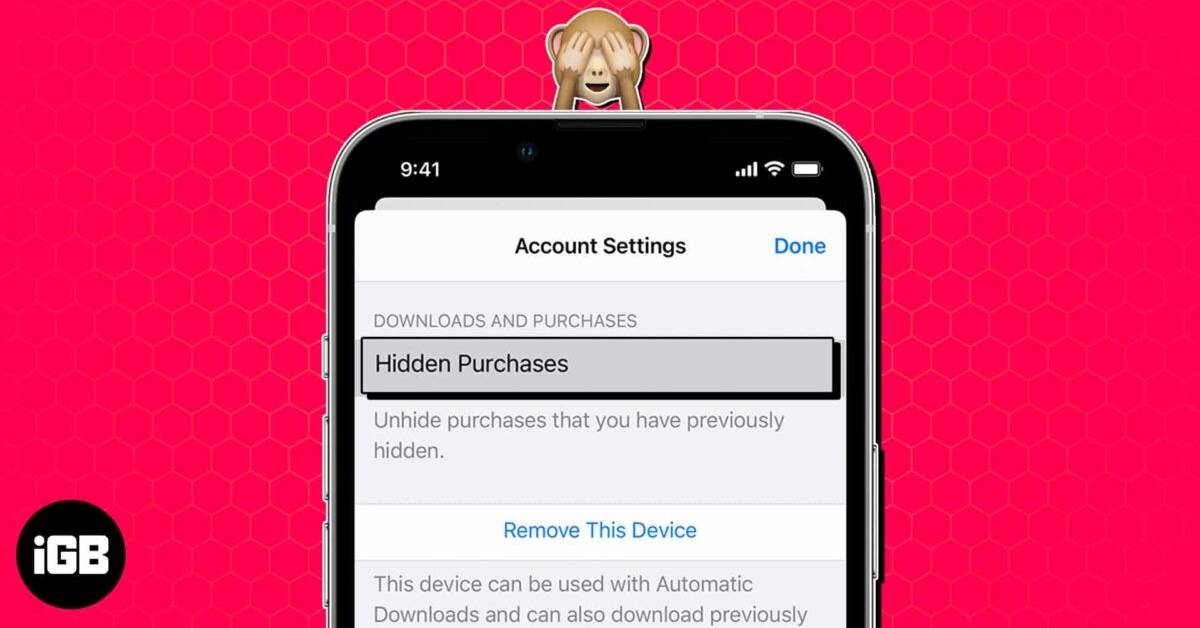
How to Hide App Store Purchases on iPhone, iPad, and Mac
Keep your App Store purchase history private on Apple devices. Learn how to hide purchased apps on iPhone, iPad, and Mac step by step.
VikhyatFebruary 20, 2026
How to Mute Yourself or Others on FaceTime
Can you mute someone in FaceTime? Learn what’s possible, plus smart ways to control audio and stop interruptions during calls.
 Ava BiswasFebruary 18, 2026